
Cloud storage has become an essential part of our digital lives. Many people now use several services at once, Google Drive for collaboration, OneDrive for work, Dropbox for sharing, Mega for large files, and more. But as cloud usage grows, so does the challenge of keeping everything organized.
Poor cloud organization leads to wasted time searching for documents, duplicated files scattered across accounts, and clutter that slows down productivity. A clear, well‑structured cloud storage system is the key to quick retrieval, efficient workflows, and long‑term digital hygiene.
In this guide, you’ll learn practical strategies to organize your cloud storage effectively, plus recommended tools, Air Live Drive, Air Cluster, and Air Explorer, that make multi‑cloud organization easier than ever.
1. Why cloud storage organization matters
A well‑organized cloud environment offers several benefits:
- Faster access to important files
A logical structure helps you find what you need instantly. - Reduced duplication and wasted space
Clean folders prevent multiple versions of the same file. - Easier collaboration and sharing
Teams work better when files are easy to locate. - Better long‑term storage hygiene
A tidy cloud stays tidy with minimal effort. - Essential for multi‑cloud users
If you use Google Drive, OneDrive, Dropbox, Mega, TeraBox, or others, organization becomes even more important.

2. Step-by-step: How to structure your cloud storage
2.1 Start with a clear folder hierarchy
Begin by creating top‑level folders based on broad categories such as:work, personal, photos, projects, finance, school,…
Avoid deep, complicated nesting. A simple structure is easier to maintain.
2.2 Use consistent naming conventions
Consistency is crucial. Use:
- Dates in YYYY‑MM‑DD format
- Project codes
- Descriptive names
Avoid vague labels like New folder, Document1, or Untitled.
2.3 Separate active files from archives
Keep your workspace clean by dividing files into:
- Active – current projects or documents
- Archive – completed or old files
This reduces clutter and speeds up retrieval.
2.4 Standardize file types and formats
Choose preferred formats and stick to them:
- PDF for documents
- DOCX for editable files
- JPG or PNG for images
This prevents confusion and unnecessary duplicates.
2.5 Use tags or metadata when available
Some cloud services allow:
- Labels
- Stars
- Color coding
- Categories
These help you filter and locate files quickly.
2.6 Clean up regularly
Schedule monthly or quarterly clean‑ups:
- Delete duplicates
- Remove outdated files
- Clear temporary content
A little maintenance goes a long way.
2.7 Back up important folders
Critical files should always exist in more than one place. Use sync tools to mirror essential folders across clouds for extra security.

3. Organizing files across multiple cloud services
Using several cloud services at once introduces new challenges:
- Files become scattered across platforms
- Folder structures become inconsistent
- Manual transfers take time
- Duplicates multiply quickly
This is why multi‑cloud organization requires dedicated tools that unify your storage and simplify management.
4. Tools that help you organize and manage cloud storage efficiently
4.1 Air Live Drive – Mount your clouds as local drives
Air Live Drive lets you mount cloud storage accounts as if they were local disks on your computer.
Benefits include:
- Mount Google Drive, OneDrive, Dropbox, Mega, and more
- Organize files using your regular file explorer
- No need to sync everything to your PC
- Ideal for users who prefer a simple, local‑drive workflow
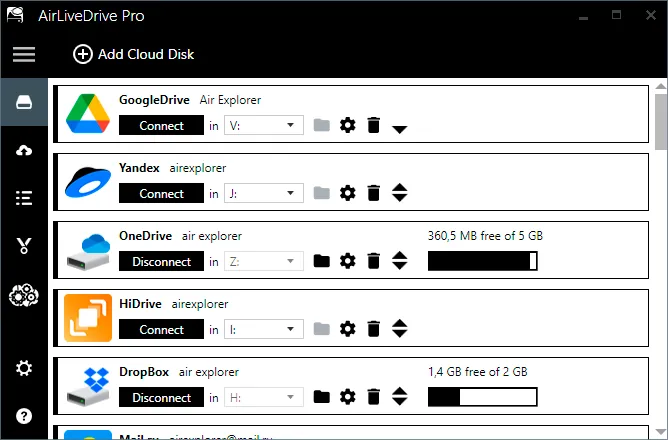
It’s perfect for managing cloud files as if they were stored directly on your device.
4.2 Air Cluster – Combine multiple cloud accounts into one big space
If you have several accounts from the same provider (e.g., multiple Google Drives), Air Cluster merges them into a single, unified storage pool.
Advantages:
- Combine multiple accounts into one large cloud
- Maintain a single folder structure across all accounts
- Ideal for users who rely on multiple free cloud accounts
- Simplifies organization and reduces fragmentation
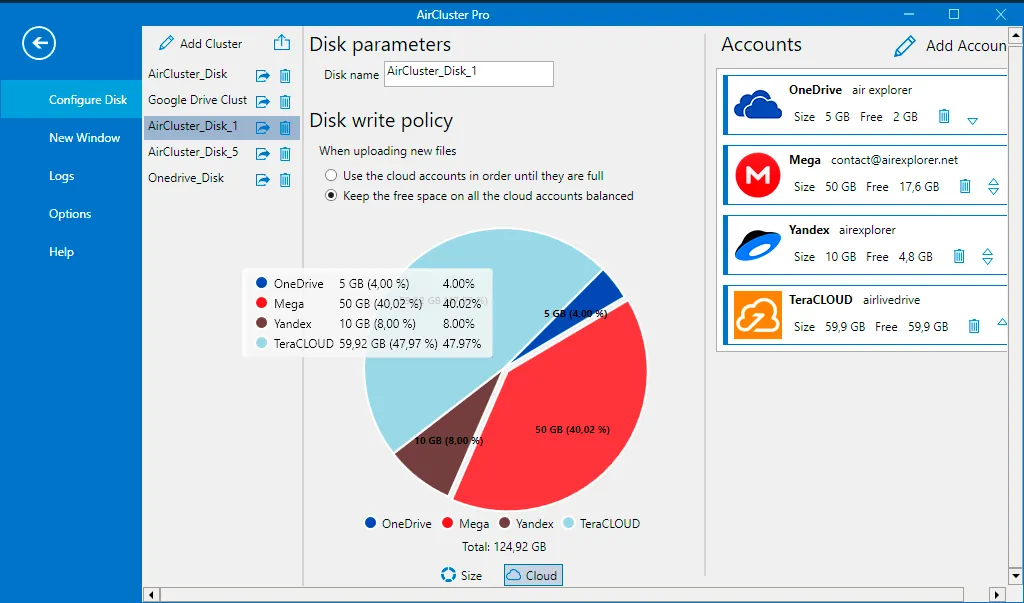
This is especially useful for users who want to maximize free cloud storage.
4.3 Air Explorer – Full multi-cloud file manager
Air Explorer is the most complete tool for organizing multiple cloud services.
Key features:
- Manage 50+ cloud services from one interface
- Copy, move, sync, and transfer files between clouds
- Create consistent folder structures across all accounts
- Encrypt files before uploading for extra security
- Perfect for users who want full control over multi‑cloud organization
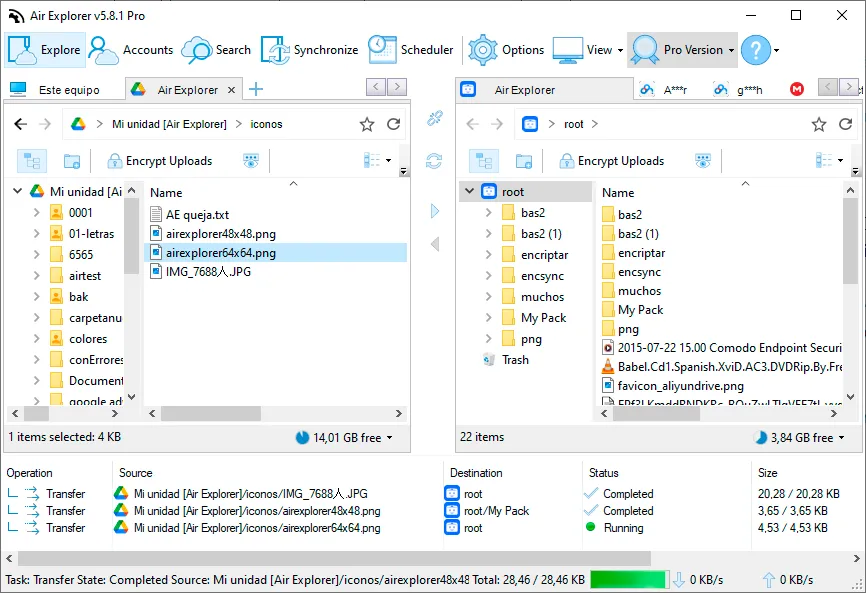
It’s the ideal solution for building a clean, unified cloud ecosystem.
5. How these tools improve cloud organization
Using Air Live Drive, Air Cluster, and Air Explorer provides powerful advantages:
- Faster file retrieval thanks to unified views
- Better duplication control across clouds
- Consistent folder structures across all services
- Cloud‑to‑cloud transfers without downloading files
- Improved long‑term storage hygiene
- Reliable backups through multi‑cloud sync
These tools turn a messy multi‑cloud environment into a streamlined, efficient workspace.
6. Practical example: Building a clean multi-cloud workflow
Here’s how you can combine the three tools for maximum efficiency:
- Create a master folder structure in Air Explorer
Build a clean, consistent hierarchy that you’ll use across all clouds. - Mount your clouds with Air Live Drive
Organize files locally using your file explorer, without syncing everything. - Use Air Cluster to merge multiple accounts
Combine several Google Drive or OneDrive accounts into one large cloud. - Sync important folders between clouds
Use Air Explorer to mirror essential files for redundancy and backup.
This workflow keeps your cloud storage clean, unified, and easy to manage.
7. Conclusion
A well‑structured cloud storage system saves time, reduces clutter, and boosts productivity. With clear folder hierarchies, consistent naming, regular clean‑ups, and smart backup habits, you can keep your digital life organized and efficient.
Tools like Air Live Drive, Air Cluster, and Air Explorer make multi‑cloud management even easier by unifying your accounts, simplifying transfers, and helping you maintain a consistent structure across all your cloud services.
Adopt a structured system today and use the right tools to keep your cloud storage clean, organized, and ready for quick retrieval whenever you need it.