
Managing files across multiple cloud accounts can quickly become repetitive. Uploading reports, sorting documents, creating folders, renaming drafts, and moving old files into archives often require the same actions again and again. With Air Explorer, you can use AI to describe what you want in plain English and let the assistant carry out the corresponding cloud-management tasks.
Air Explorer’s AI Skill connects a local AI assistant (such as ChatGPT/Codex, Claude Code, or Google Antigravity) to the Air Explorer command line. This means you can ask for practical actions such as: “Upload every PDF in my Downloads folder to Google Drive and place them in a new 2026 Reports folder.” The AI interprets the request, prepares the appropriate commands, and uses Air Explorer to complete the task.
This manual explains how to upload and organize files with AI using Air Explorer safely and efficiently.
What You Need Before You Start
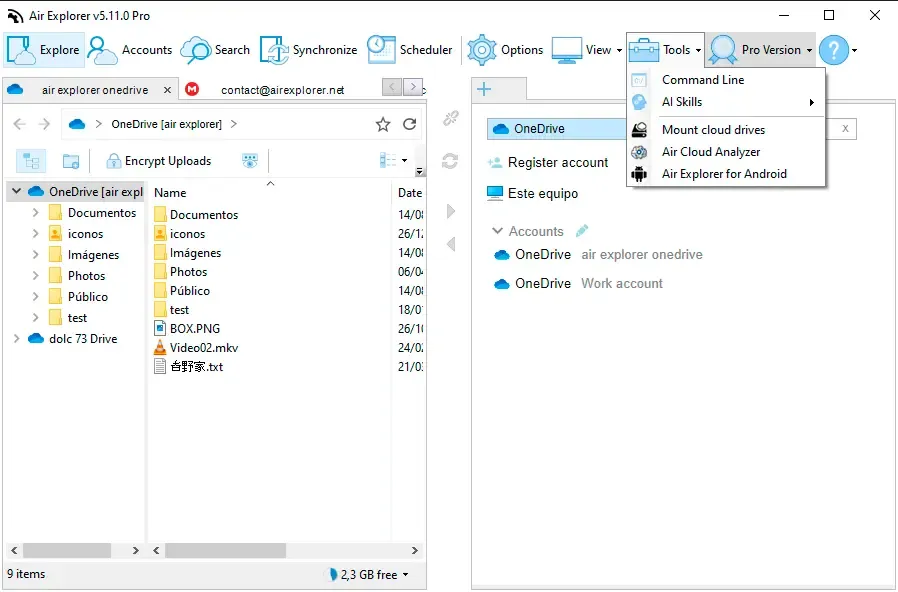
To use the Air Explorer AI Skill, you need Air Explorer Pro installed and activated on your Windows PC. You must also enable command-line support from Options → Command line → Enable command line support.
Because the assistant runs Air Explorer commands locally, use an AI tool that can execute commands on your computer. ChatGPT Desktop with Codex, Claude Code, and Google Antigravity are supported options.
Once Air Explorer is ready, open Tools → AI Skills and choose the installation option for your assistant. Restart the AI assistant after installation so it can detect the new skill. A quick first test is to ask:
List my Air Explorer accounts.
The assistant should display the cloud accounts already configured in Air Explorer, including their aliases. These aliases are important because they let you refer to a specific Google Drive, OneDrive, Dropbox, or other cloud account in your requests.

Upload Files to the Cloud with a Simple AI Request
The most direct way to upload files with AI is to describe the source folder, the type of file, and the cloud destination.
For example, you can ask:
Upload all PDF files from
C:\Reports\2026to the Reports folder in my Google Drive.
The AI can identify the local Windows path, check the destination cloud account, and create the folder when needed. You do not need to memorize command syntax or manually open each cloud account.
You can also make the request more specific:
Upload all Excel files from my Downloads folder to
root/Finance/Monthly Reportsin my OneDrive.
This approach is especially useful for recurring tasks, such as sending weekly reports to a shared cloud folder or backing up project documents at the end of each day.
When working with cloud paths, remember that Air Explorer uses forward slashes. A path should begin with the account root folder name, such as root/Reports, rather than with a leading slash. If you are unsure about the correct folder structure, first ask the AI to list the contents of the cloud account or folder.
Organize Cloud Files with AI
Uploading is only the first step. The real advantage of using AI with Air Explorer is the ability to organize a cloud account through natural-language instructions.
For instance, you could say:
Create a folder called 2026 in my Google Drive and move all Excel files from Inbox into it.
The assistant can create the folder and move matching files without requiring you to search, select, and drag items manually. You can use the same workflow to organize files by year, client, project, document type, or department.
Other useful requests include:
- “Rename
draft-contract.docxtofinal-contract.docxin my OneDrive.” - “Move all images from Downloads to the Photos folder in Dropbox.”
- “Create folders for January, February, and March in my Backup account.”
- “Copy every PDF in Archive to a new folder called Important Documents.”
- “Show me how much free space is left on each of my cloud accounts.”
By combining upload, move, copy, rename, and folder-creation actions, you can turn a disorganized cloud account into a structured workspace with far less manual effort.
Use AI to Build a Repeatable File Workflow
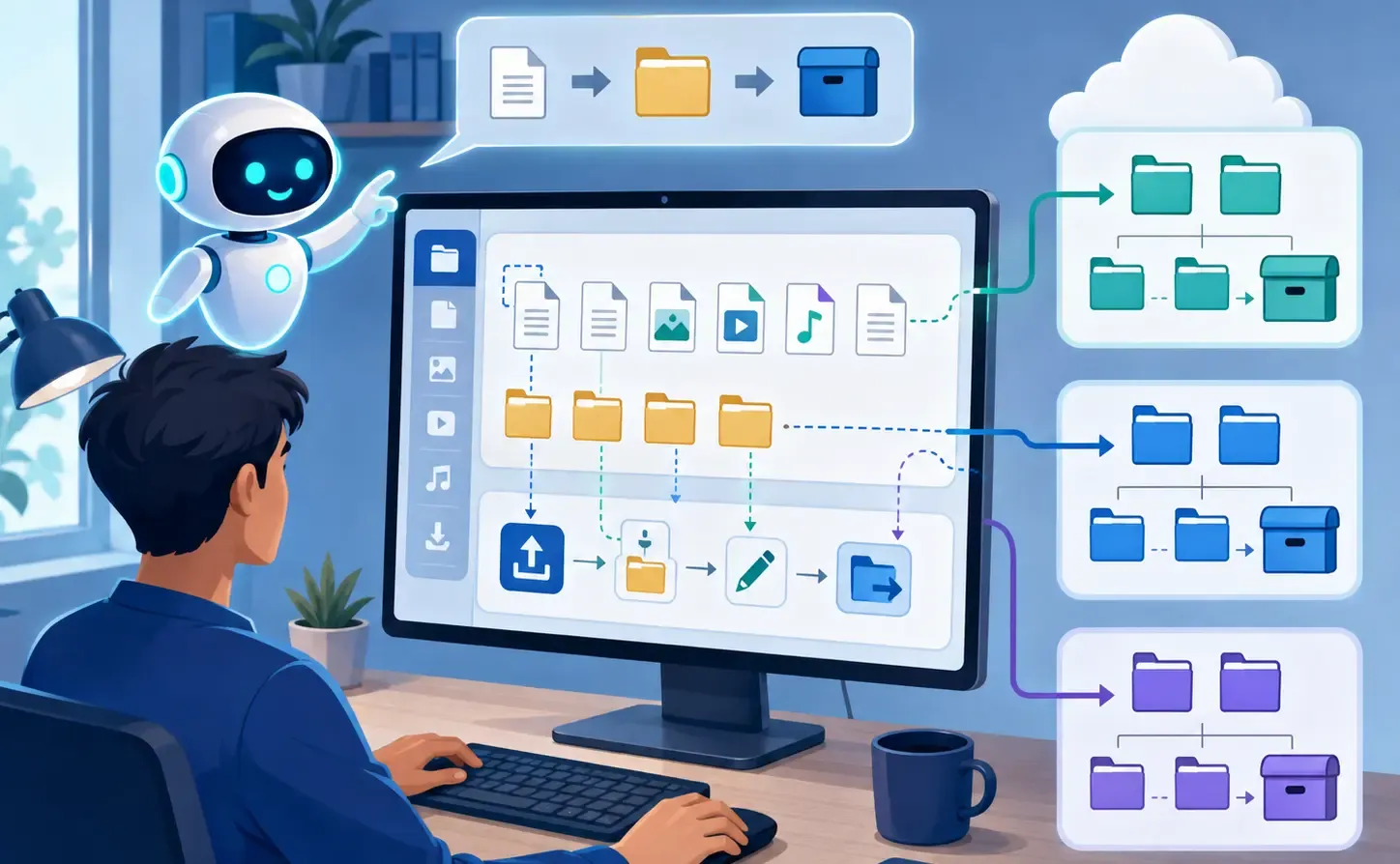
A good file-management workflow usually follows three stages: review, organize, and upload.
Start by asking the assistant to inspect a folder:
Show me all PDF and Excel files in
C:\Work\Invoices.
Next, organize the destination:
Create a 2026 Invoices folder in my Google Drive.
Finally, upload the relevant files:
Upload the PDF and Excel files from
C:\Work\Invoicestoroot/2026 Invoicesin my Google Drive.
This method helps prevent mistakes because you can verify each step before moving forward. It is also ideal for businesses that receive files from multiple sources and need a consistent cloud filing system.
For larger projects, ask the AI to handle batches. Air Explorer supports multiple cloud operations, so you can prepare a folder structure, upload documents, and copy a backup to another cloud provider as part of one coordinated workflow.
Keep Your Cloud Files Safe
AI makes cloud management faster, but important actions should still be reviewed carefully. Air Explorer’s AI Skill is designed to ask for confirmation before destructive actions such as deleting or overwriting files.
This is particularly important when using mirror synchronization. A mirror sync makes the destination match the source, which can remove cloud files that do not exist in the local folder. Before running a mirror operation, ask the AI to compare changes first and review the files that would be uploaded, updated, or deleted.
Air Explorer also keeps your cloud passwords private. The AI uses the cloud accounts already configured in the application rather than receiving your account credentials directly.
Boost your cloud power — try Air Explorer now
Conclusion
Using AI with Air Explorer makes uploading and organizing cloud files faster, clearer, and easier to repeat. Instead of navigating multiple cloud interfaces, you can describe the result you need in plain English. From uploading reports and sorting documents to creating folder structures and checking storage space, Air Explorer’s AI Skill gives you a practical way to manage multiple clouds from one workflow.