How to Create a File System for Photos, Videos, and Heavy Assets Across Multiple Clouds
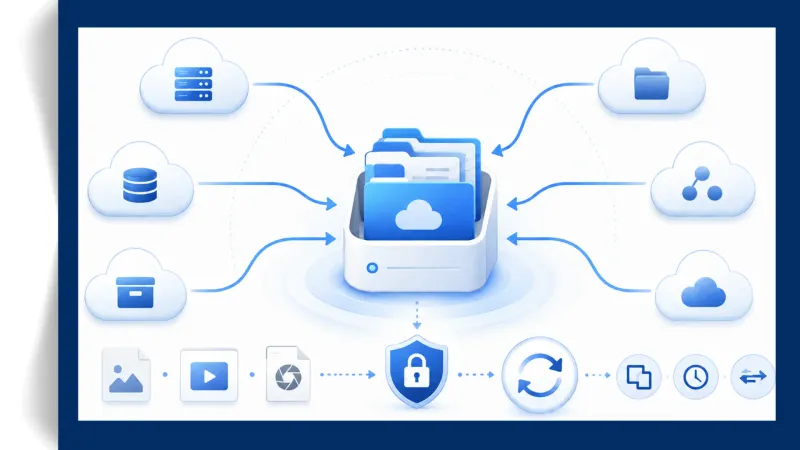
If your photo library and 4K video projects no longer fit inside a single cloud account, the smartest solution is not paying for a bigger plan, it is combining the accounts you already have. A multi-cloud file system merges several cloud storage accounts into one virtual drive, so you can organize, search, and back up heavy media assets from a single place. In this guide you will learn how to build that system step by step using Air Cluster, a Windows tool that joins all your clouds into one big cloud.
Why heavy media files outgrow a single cloud
One hour of 4K video can occupy between 20 and 45 GB depending on bitrate, and a single RAW photo easily weighs 25–50 MB. Meanwhile, the most popular free tiers remain modest: Google Drive offers 15 GB, OneDrive 5 GB, Dropbox 2 GB, and Mega 20 GB.
Individually, none of these accounts can hold a serious media archive; together they add up to more than 40 GB of free space, and much more with paid plans or multiple accounts. The problem is that files scattered across separate logins become unmanageable: duplicates appear, structures diverge, and nobody remembers which cloud holds the final cut of a project.
What is a multi-cloud file system?
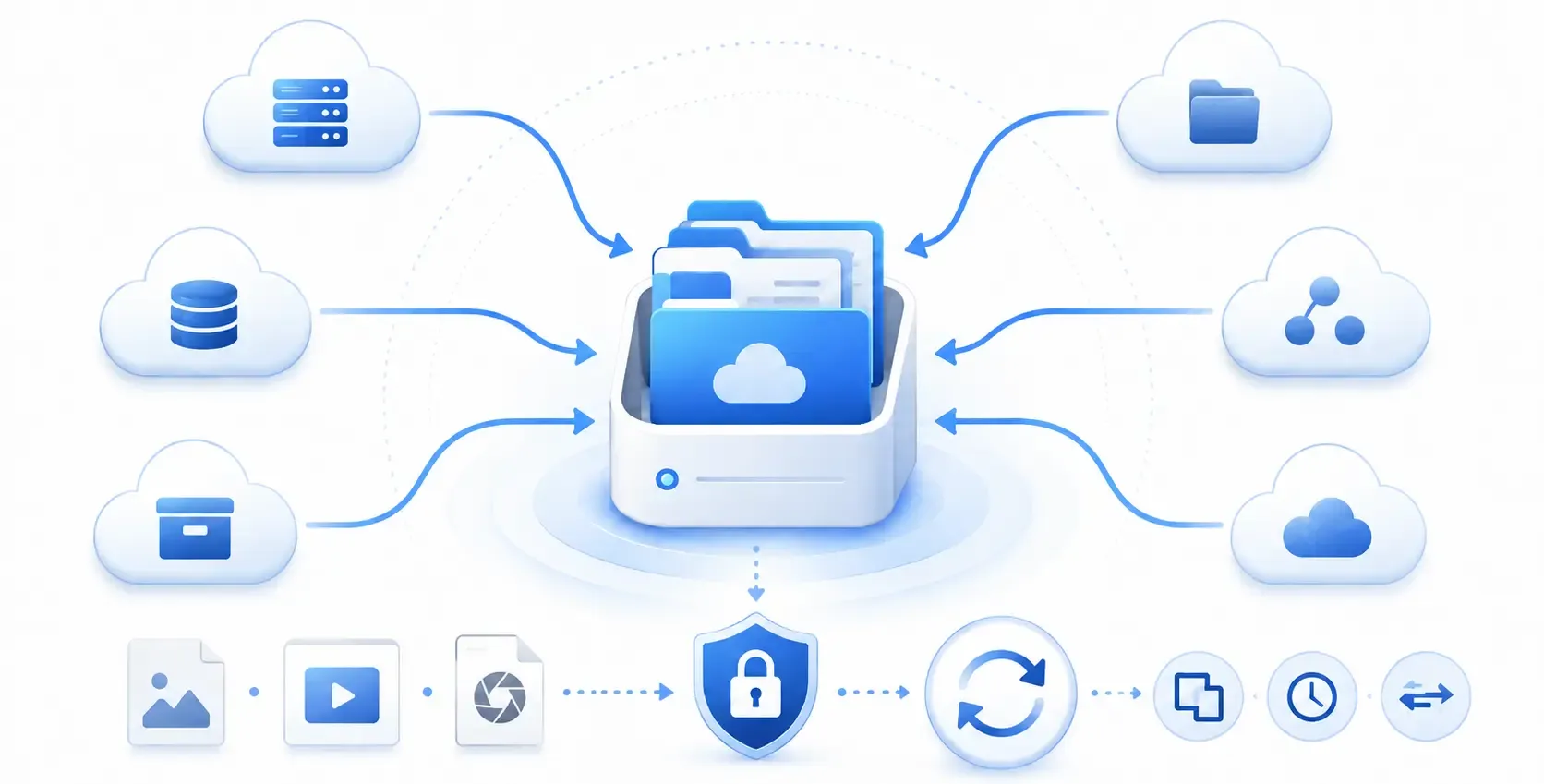
A multi-cloud file system is a storage pool that combines the capacity of several cloud accounts and presents them as a single drive with one folder structure. Air Cluster implements this through storage pooling technology: you create a cluster, add your accounts, and the software treats them as one big cloud, distributing files automatically based on the free space available in each account.
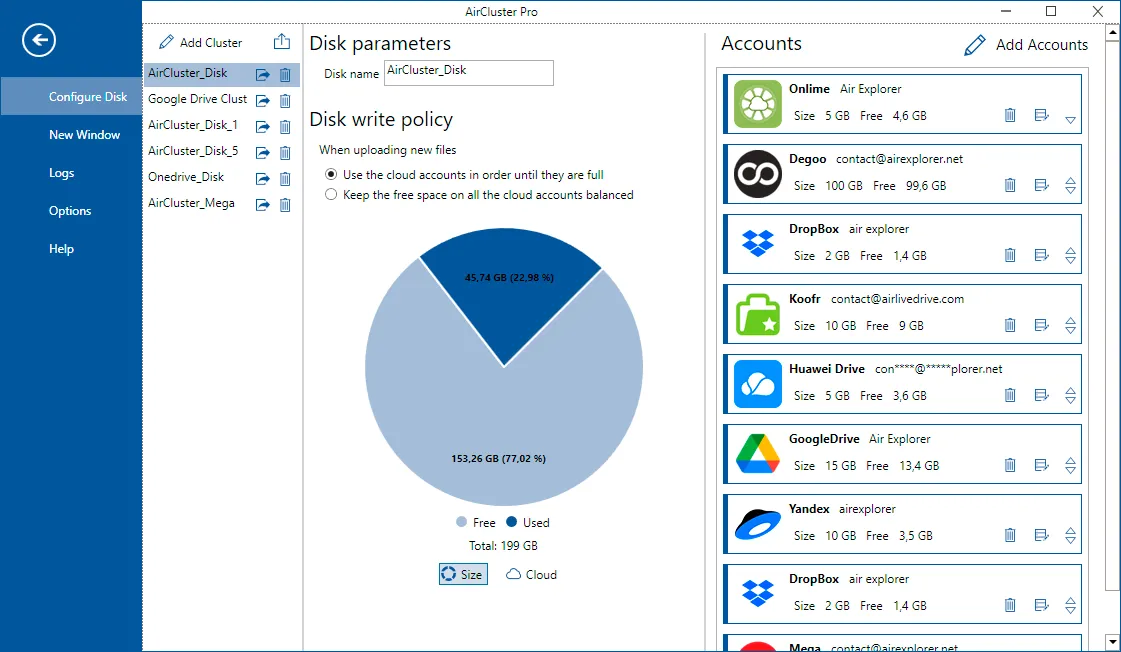
Air Cluster supports more than 20 providers, including Google Drive, OneDrive, OneDrive for Business, Dropbox, Mega, Box, pCloud, Yandex, Naver, Baidu, and TeraBox, plus SFTP and WebDAV servers. You can even add several accounts from the same provider, for example, three Google Drive accounts, and sum their capacity.
How to set up your media file system step by step
- Download and install Air Cluster on your Windows PC from the official website.
- Create a new cluster from the main window and give it a descriptive name, such as “Media Archive”.
- Add your cloud accounts to the cluster. Air Cluster immediately shows the total combined capacity, as if it were a single large drive.
- Design a provider-independent folder structure before uploading anything. A simple, scalable scheme works best: /Photos/2026, /Videos/Projects, /Assets/Audio, /Assets/Graphics.
- Upload your files with drag and drop or copy and paste. Air Cluster distributes the data across the connected clouds automatically, so you never have to check which account has free space.
- Enable client-side encryption for sensitive material. Files are encrypted on your computer with your password before uploading, so providers only ever store encrypted data blocks.
- Automate maintenance with the built-in task scheduler. Configure periodic synchronizations between your local media folder and the cluster, choosing the sync mode that fits your workflow (Mirror, Update, or Bidirectional) and activate hash comparison when you need to verify file integrity.
Best practices for a durable media archive
- Use consistent naming with dates (YYYY-MM-DD_project) so the centralized search finds any file across all clouds instantly.
- Follow the 3-2-1 backup rule: keep three copies of critical projects, on two different media, with one off-site, your cluster can serve as that off-site copy.
- Keep the folder logic independent of any provider. If you later replace Dropbox with another service, your structure stays intact.
- Review free space per account periodically and add new accounts to the cluster whenever you need more capacity, growth is practically unlimited.
Frequently asked questions
Can I combine free accounts from different providers?
Yes. Air Cluster merges free and paid accounts from over 20 services into one cluster. Combining Google Drive, OneDrive, Dropbox, and Mega alone gives you roughly 42 GB of unified free storage.
What happens when one cloud in the cluster fills up?
Nothing interrupts your work. Air Cluster automatically places new files in the accounts that still have free space, and you can add another account at any time to expand the pool.
Is it safe to store private photos and videos this way?
Yes, if you enable the optional encryption. Because files are encrypted locally before transmission, neither the cloud provider nor anyone who compromises your account can read them without your password.
Do I need technical knowledge to manage the cluster?
No. The cluster behaves like a local drive: drag, drop, copy, paste, rename, and search across all your clouds from one interface.
Conclusion
Creating a file system for photos, videos, and heavy assets across multiple clouds comes down to three decisions: pooling your accounts with Air Cluster, defining a clean folder structure from day one, and automating backups with the scheduler. The result is a scalable, encrypted media archive that grows every time you add an account. Download Air Cluster and turn your scattered clouds into one big cloud today.