
A good backup is not simply a copy of everything on your computer. If the source contains duplicate files, obsolete downloads, temporary data, and poorly organized folders, the backup will preserve the same problems while consuming more cloud space. A better approach is to inspect and prepare the data first, then create and maintain the backup.
Air Cloud Analyzer and Air Explorer work well together for this purpose. Air Cloud Analyzer helps you understand what you have and identify files that need attention. Air Explorer then lets you organize, transfer, synchronize, and schedule copies between your computer and cloud accounts.
Step 1: Define what the backup must protect
Start by identifying the folders that contain information you cannot easily replace: documents, photographs, project files, accounting data, application exports, and other important records. Separate them from software installers, caches, temporary folders, and files that can be downloaded again.
Also decide where the backup will be stored. A practical plan may include one local copy and one or two cloud destinations. Remember that synchronization and backup are not always the same: a mirrored synchronization can reproduce an accidental deletion. Important data should also have a separate versioned or historical copy whenever possible.
Step 2: Analyze the source with Air Cloud Analyzer
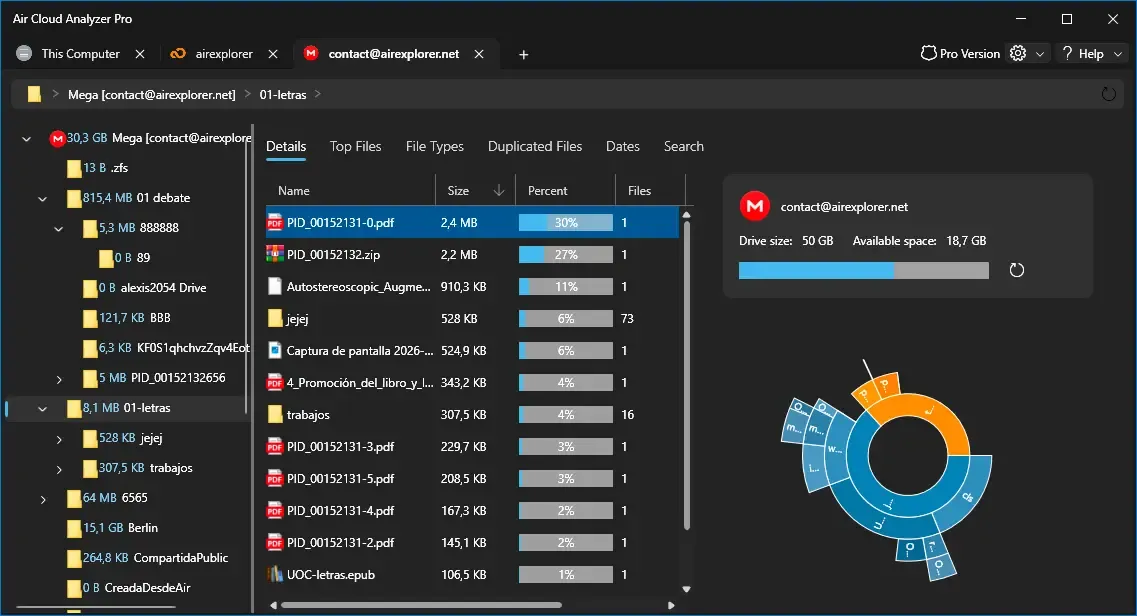
Before transferring data, scan the relevant local drive or cloud account with Air Cloud Analyzer. Its visual charts show how storage is distributed and which folders occupy the most space. This gives you a useful overview before you begin changing anything.
Review the largest-files view first. Large videos, disk images, old archives, and forgotten backups often account for a significant part of the total. Do not delete a file only because it is large; classify it as active, archival, replaceable, or unnecessary.
Air Cloud Analyzer - Analyze your storage and prepare a cleaner backup
Step 3: Review file types, dates, and duplicates
Use the file-type analysis to find categories that should not be included in the main backup, such as temporary files or obsolete installers. Date filters can reveal old projects that may belong in a separate archive rather than in the frequently updated backup.
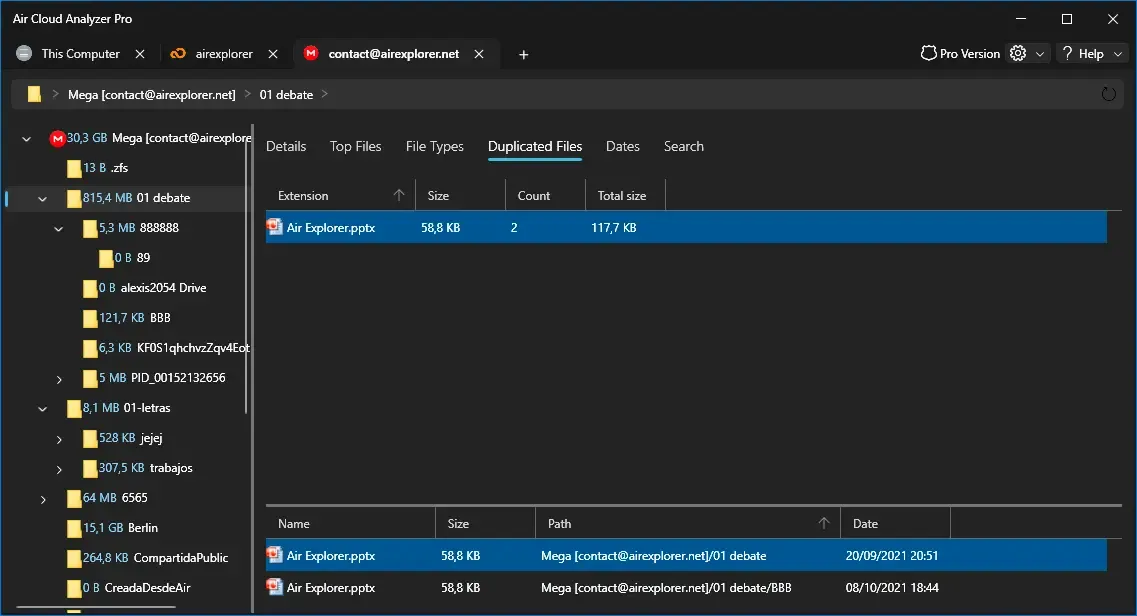
Next, inspect the duplicate-file results. Verify each group carefully before taking action: files with similar names are not necessarily identical, and two deliberate copies may belong to different projects. Air Cloud Analyzer provides the analysis needed to make the decision; use Air Explorer or your normal file tools to move, rename, archive, or remove the selected items.
Step 4: Create a clear source structure
Organize the files you want to protect into predictable top-level folders, for example Documents, Photos, Projects, and Archive. Within projects, use consistent names and dates. Keep active work separate from completed material so each group can have a suitable backup frequency.
Avoid reorganizing thousands of files and launching the first backup at the same time. Finish the cleanup, check that important files still open correctly, and only then define the backup job. If you are uncertain about a file, move it to a temporary review folder instead of deleting it immediately.
Step 5: Create the backup with Air Explorer
Open Air Explorer, add the destination cloud account, and browse the cleaned source and destination in its dual-pane interface. For the first backup, create a dedicated destination folder with an unambiguous name. Copy a small test folder and confirm that its structure, filenames, and contents arrive correctly.
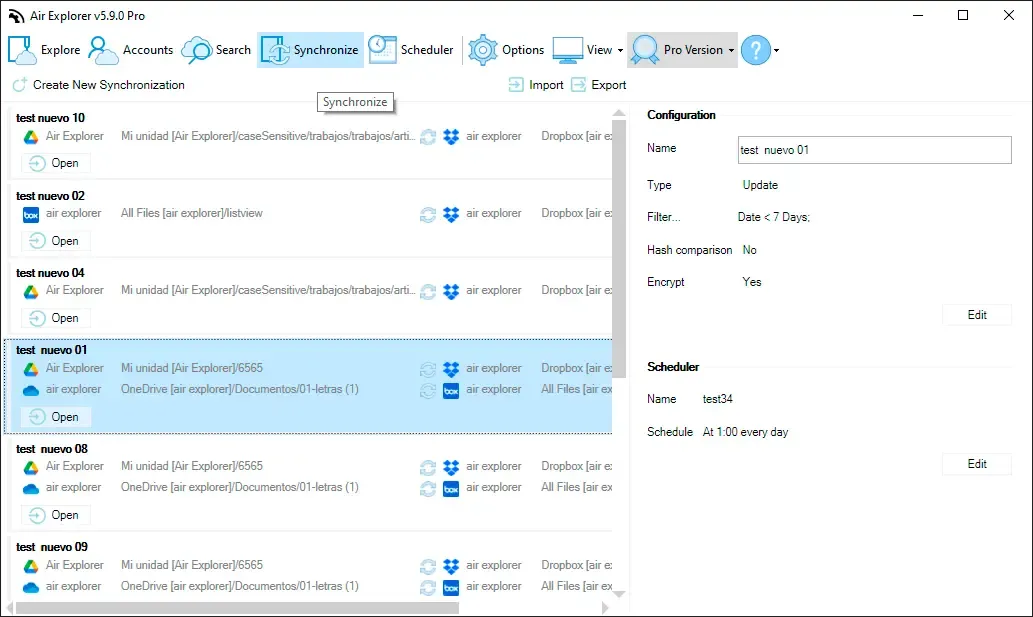
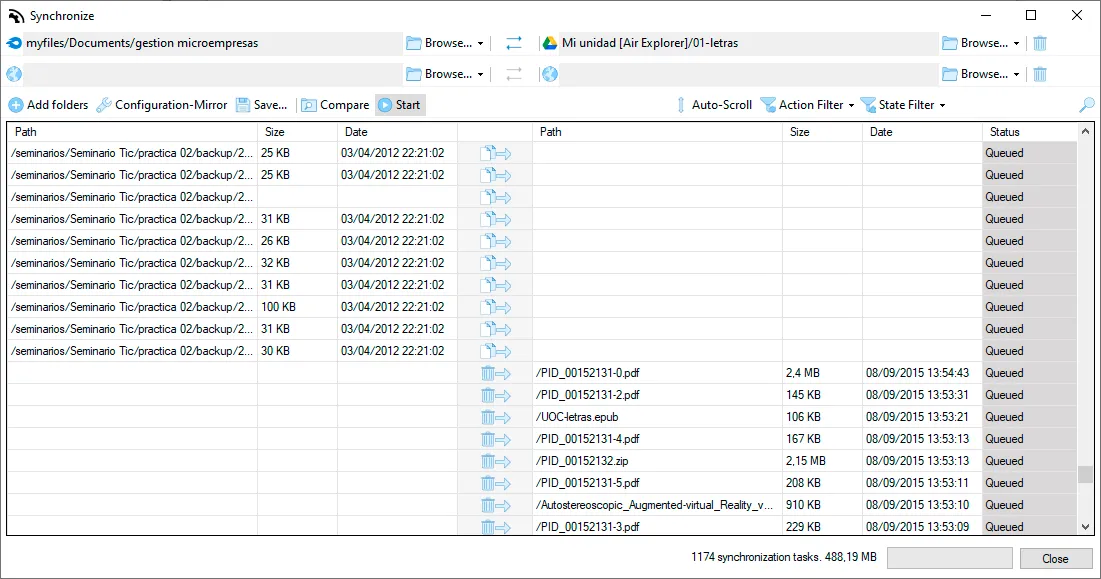
Then create a synchronization job for the complete source. Choose the synchronization mode carefully. An update-style job that copies new and modified files to the destination is generally safer for a backup than a strict mirror that can delete destination files. Always use the preview to examine planned uploads, overwrites, and deletions before running a new or modified job.
Step 6: Add a second copy and automate the routine
One backup can still fail because of account problems, ransomware, accidental deletion, or provider outages. Follow the spirit of the 3-2-1 rule: keep three copies of important data, on at least two storage types, with one copy in another location. Air Explorer can help by copying data to another supported cloud service or storage destination.
Once the manual run succeeds, save the synchronization and schedule it at a frequency appropriate for the data. Active business files may need daily protection, while a finished archive may only need a monthly check. Schedule jobs when the computer and network are normally available, and review their results rather than assuming that automation always succeeds.
Step 7: Verify that the backup can be restored
A backup is useful only if it can be recovered. Periodically select files from different folders and restore them to a temporary location. Open the restored documents, images, and archives to confirm that they are complete. Check the Air Explorer job results for skipped files, authentication errors, insufficient cloud capacity, or interrupted transfers.

Step 8: Repeat the analysis
Storage changes over time, so repeat the Air Cloud Analyzer audit regularly. Compare the largest folders, review new duplicates, and identify old data that can move from the active backup to the archive. After making deliberate changes with Air Explorer, run and verify the next backup.
This workflow gives each application a clear role: Air Cloud Analyzer helps you decide what deserves protection, while Air Explorer performs and maintains the copies. The result is a smaller, clearer, and more reliable backup system that is easier to verify and restore.