
Using several cloud storage services can be convenient, but it often creates an unexpected problem: duplicate files. A document may exist on your computer, Mega, OneDrive, and Dropbox, sometimes under slightly different names or with different modification dates.
These copies consume storage, make searches more difficult, and increase the risk of editing an outdated version. Fortunately, you can combine Air Cloud Analyzer and Air Explorer to find existing duplicates, clean up your storage, and prevent the problem from returning.
Why do duplicate files appear?
Duplicate files usually accumulate gradually. You may upload the same photo folder to two cloud accounts, copy work documents between computers, or repeat a transfer because you are unsure whether it finished correctly.
Automatic synchronization can also create extra copies when a file is edited simultaneously on different devices. Some applications preserve both versions to avoid losing information, producing filenames such as report-copy.docx or report-conflicted-copy.docx.
Other common causes include:
- Repeated cloud migrations.
- Overlapping backup and synchronization tools.
- Email attachments saved more than once.
- Renamed files that still contain identical data.
- Shared folders copied into personal accounts.
- Old computers backed up without reviewing their contents.
The result is more than wasted space. Duplicates can increase storage costs, slow down backups, clutter search results, and make it difficult to identify the current version of a file. They can also spread to every connected device when an unwanted copy is synchronized automatically.
Find duplicate files with Air Cloud Analyzer
Air Cloud Analyzer is designed to analyze cloud accounts and local drives. It provides information about storage usage, large files, file types, modification dates, and potential duplicates without requiring you to download everything first.
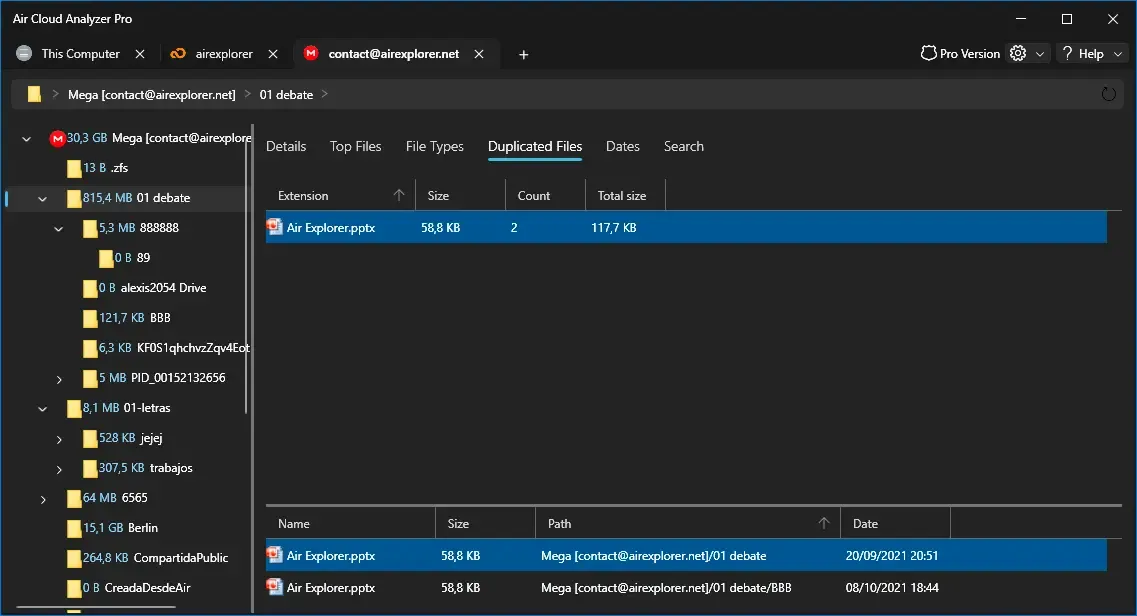
To start cleaning your storage:
- Open Air Cloud Analyzer and add your cloud accounts.
- Select an entire drive or choose a specific folder.
- Run the analysis and open the Duplicated Files view.
- Review each group of possible duplicates.
- Open the files or their containing folders when verification is necessary.
- Keep the correct copy and remove only the redundant versions.
Do not delete a file simply because its name and size match another file. Some cloud providers support more accurate duplicate identification, while others may group files using only identical names and sizes. Always inspect important documents before deleting them, and keep a backup when you are uncertain.
Air Cloud Analyzer is particularly useful during the discovery stage. It helps answer three essential questions: where are the duplicates, how much space do they consume, and which copy should you keep?
Prevent new duplicates with Air Explorer
Once your storage is clean, Air Explorer can help you organize and synchronize files across cloud accounts and computers from one interface.
Add your cloud services, then select the two folders you want to coordinate. Open the synchronization tool and choose the most appropriate mode:
- Update copies newer files from the source to the destination.
- Bidirectional sends newer files in both directions.
- Mirror replicates the source structure in the destination.
- Customized lets you define more specific rules.
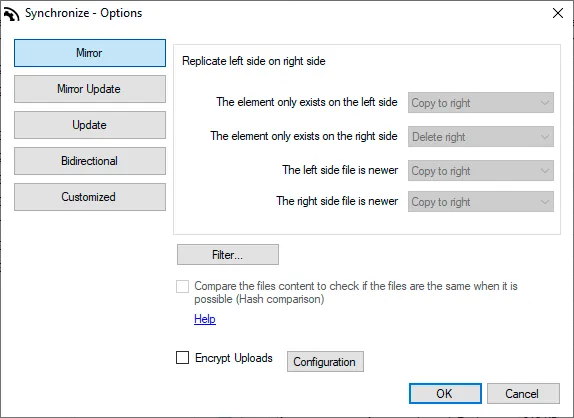
If one folder is your authoritative source, an update or carefully configured mirror is usually easier to control than bidirectional synchronization. Use bidirectional mode only when both locations are active workspaces and changes genuinely need to travel in both directions.
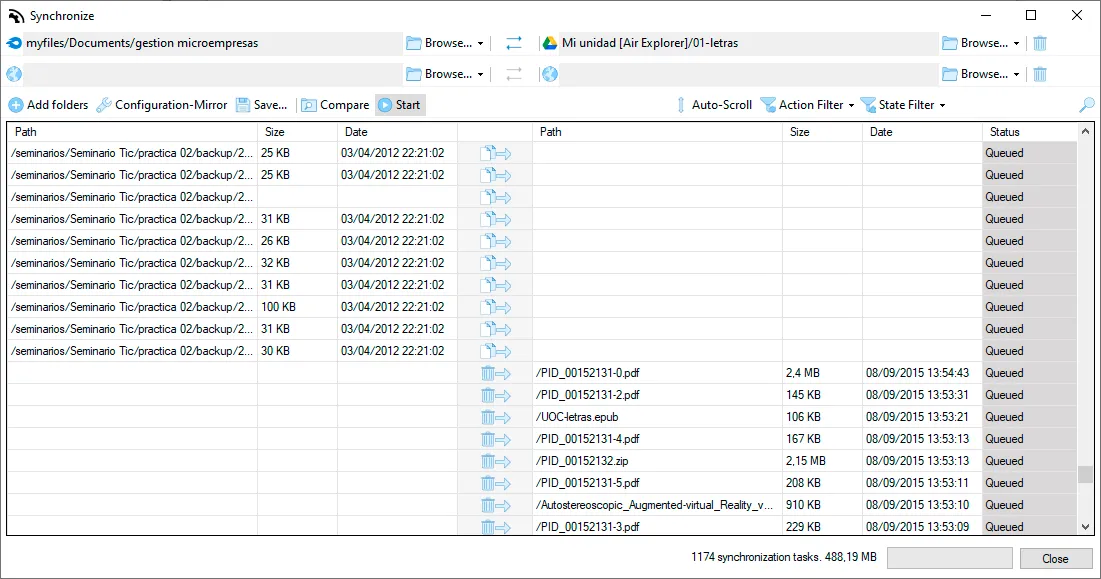
Before transferring anything, click Compare. Air Explorer displays the proposed operations so you can review copies, updates, and deletions before starting. You can then save the synchronization and schedule it for future use.
Air Explorer can also use hash comparison to recognize identical files when the services involved provide compatible hashes. This helps the application avoid unnecessary updates during synchronization. Hash availability varies between providers, so the comparison preview remains an important safety step.
Use both tools for a complete workflow
The most effective solution is to use both applications as part of a repeatable process:
- Scan your clouds and computers with Air Cloud Analyzer.
- Review duplicate groups and choose the version you want to preserve.
- Delete or archive unnecessary copies.
- Define one main folder structure for active files.
- Use Air Explorer to synchronize that structure with your other clouds or devices.
- Save and schedule the synchronization.
- Run Air Cloud Analyzer periodically to detect new duplicates.
Air Cloud Analyzer provides visibility and cleanup, while Air Explorer handles organization, transfer, and prevention. One diagnoses the problem; the other maintains a cleaner system.
Keep your cloud storage duplicate-free
Avoid running several synchronization programs on the same folders. Exclude temporary files and downloads when possible, use consistent filenames, and keep intentional backups separate from active working folders. Choose one authoritative location for each project instead of treating every copy as an editable master.
Most importantly, treat duplicate management as regular maintenance. A monthly analysis followed by controlled synchronization can keep your cloud accounts organized, reduce unnecessary storage costs, and ensure that the file you open is always the version you actually need.